How to Change Video Background without Green Screen on iPhone
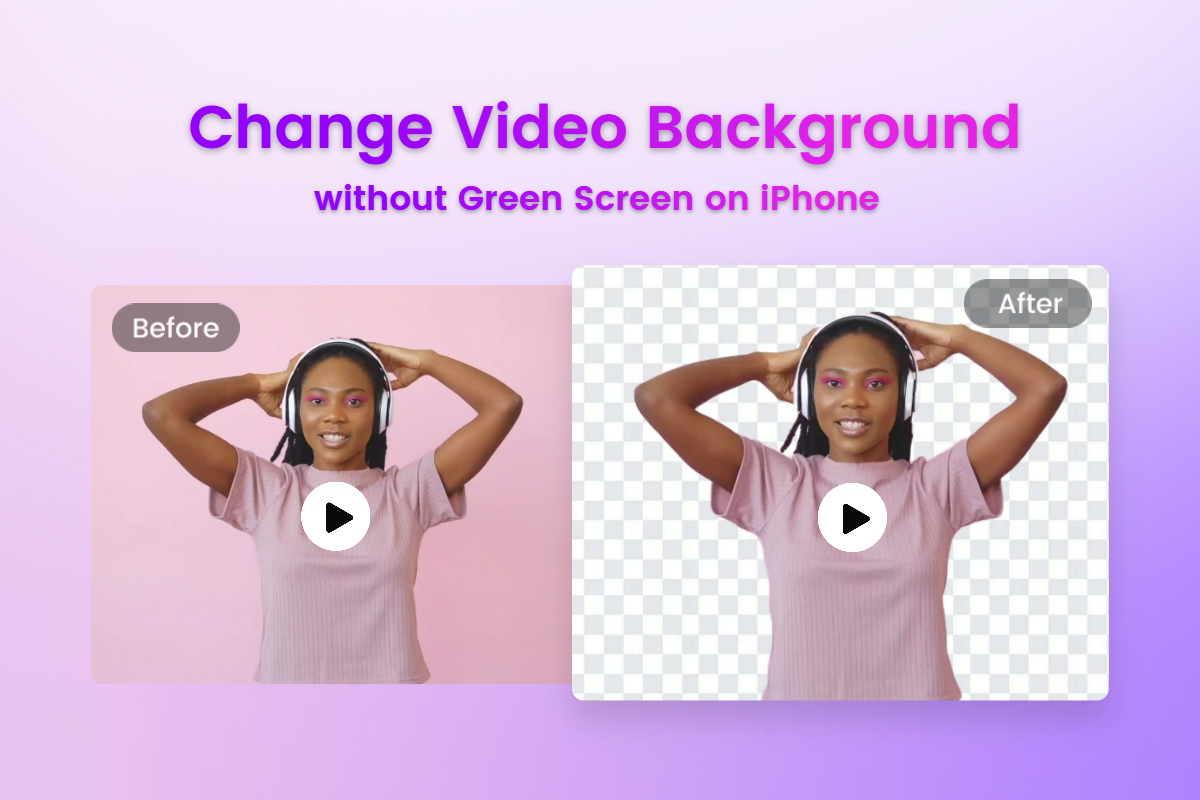
Summary: This post introduces how to change video background without green screen on iPhone: with Fotor or iMovie. Use these two tools to remove the video background, add a background, or change the background color with easy clicks.
Recording and sharing video on an iPhone is easy, but replacing a distracting background can still be challenging. A cluttered or distracting background can make an otherwise strong video look less polished. Traditionally, creators used a green or blue screen to replace a video background in post-production.
But what if you don't have the option to shoot in a studio with a green screen?
You can now remove or replace a background with an AI tool, even if the footage was not shot against a green screen.
This article covers both scenarios: how to change video background without green screen on iPhone and how to change video background with a green screen. Let's explore them in detail.
How to Change Video Background without Green Screen on iPhone with Fotor
With the development of technology, the issue of how to change video background without green screen on iPhone is not as complicated as before. Several browser-based and mobile editing tools now offer automatic video background removal. One option is Fotor's AI video background remover.
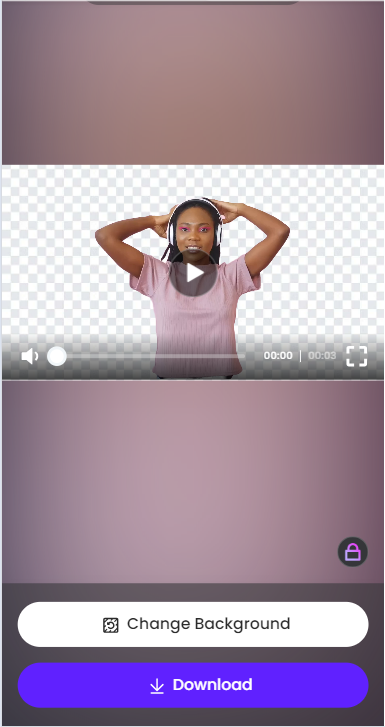
Its cutting-edge AI algorithm enables you to remove background from portrait videos with a single tap. Fotor automatically detects the main subject and removes the surrounding background. Results may vary with lighting, motion, and edge detail. This can help creators clean up talking-head, tutorial, and social media clips without reshooting them against a green screen.
Let's look at how to remove video background without green screen on iPhone with the video background remover:
Step 1. Upload the video to edit.
Tap to upload your video and choose an MP4 or MOV file. At the time of review, Fotor lists a limit of 4K, 60 seconds, 30 FPS, and 500 MB.
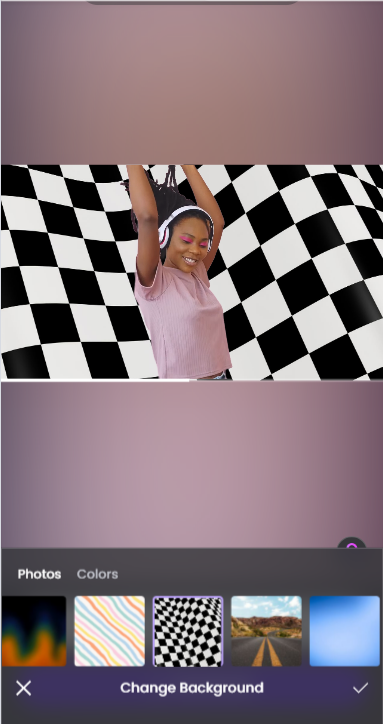
2. Choose a background from Fotor’s library, or upload to select an image from your iPhone.
3. Tap the √ button. Now you have added a background to the video.
4. Tap the Play button to prevoew the edited video.
Step 4. Download the video with new background.
Click the Download button to save the video and share it on your social media.
How to Change Video Background Colors on iPhone with Fotor
Fotor not only enables you to add a background to a video on iPhone but also allows you to change different colors of your video background. Look at the stepwise instructions below:
Step 1. Change Background and select Colors.
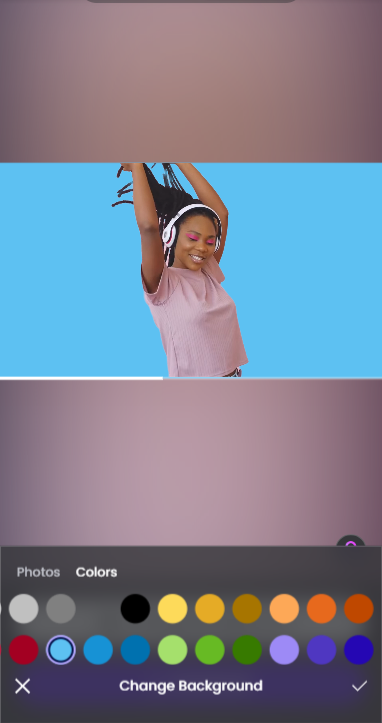
1. After the background has been removed, tap the Change Background button.
2. In the new window, tap Colors to select a background color. Or use the color pocker to create a custom background color.
3. Tap the √ button. Now you have changed the color of your video background.
4. You can click the Play button to see the changing result.
Step 2. Download the video with new background.
Click the Download button to save the video and share it on your social media.
How to Change Video Background with Green Screen on iPhone with iMovie
For footage shot against a green or blue screen, Apple’s free iMovie app offers a built-in chroma-key overlay effect.
You can use iMovie's green-screen effect to remove background from video and place the subject over anoter clip or image. This method works only when the foreground clip was recorded against a reasonably even green or blue background. Or you can go back to Fotor to directly remove and change video backgrounds if you have no green-screen video clips.
Once you have shot a green-screen or blue-screen clip, read the following steps to learn how to remove background from video in iMovie:
Step 1. Upload the video to edit.
Launch the iMovie app and open a movie project to edit.
Step 2. Add a video clip with a green background.
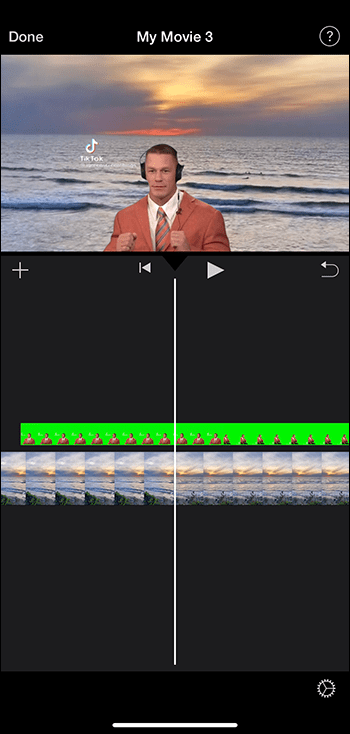
1. Scroll the timeline to find the playhead - the white vertical line.
2. Move the playhead to where you want to add the clip.
3. Tap the "Add Media" button in the upper-left corner to add a clip.
4. Select the green-screen clip from the list. And the green-screen clip is now placed above the base clip in the timeline.
Step 3. Use the green-screen effect to remove background.
1. Tap the … button.
2. Select Green/Blue Screen.
3. If needed, open the overlay controls to adjust Strength, select a different key color, or use Mask to exclude parts of the frame. iMovie will automatically remove the blue or green background from the clip and overlay it on the second video.
Step 4. Make the final adjustment.
1. Choose the green-screen video and go to the Video Overlay settings.
2. Move or trim your background clip to make sure the length of your two clips is consistent. You can see the two clips are closely connected and move in sync when you rearrange timeline clips.
Tips for Perfect Video Background Removal
If you want to know how to remove background from video on iPhones more effectively, follow these tips to improve the quality of the cutout.
1. Use a Solid Color Background
Use a simple, uncluttered background with strong contrast between the subject and the surroundings.
This makes it easier for the video background eraser to distinguish between the subject and the background.
2. Even Lighting
Make sure the entire background is evenly lit to minimize shadows and inconsistencies. This helps the software accurately recognize and remove backgrounds.
3. High-quality Footage
Upload and use a high-resolution video. Higher-quality video provides more detail and makes it easier for the tool to accurately separate the subject from the background.
4. Stabilized Camera Settings
Keep the camera steady by using a tripod, stand, or stablilization mode to avoid unnecessary movement or shaking. Stable footage reduces frame-to-frame variation and can help the cutout remain consistent.
5. Use Professional Software
For difficult footage, use a tool that includes edge refinement, masking, and manual cleanup controls.
Final Words
In this blog, we share with you how to change video background without green screen on iPhone. Use Fotor for clips recorded without a green screen. If your clip was shot against green or blue, iMovie’s chroma-key effect is another option. For cleaner results, use well-lit, high-quality footage and review the subject’s edges before exporting.